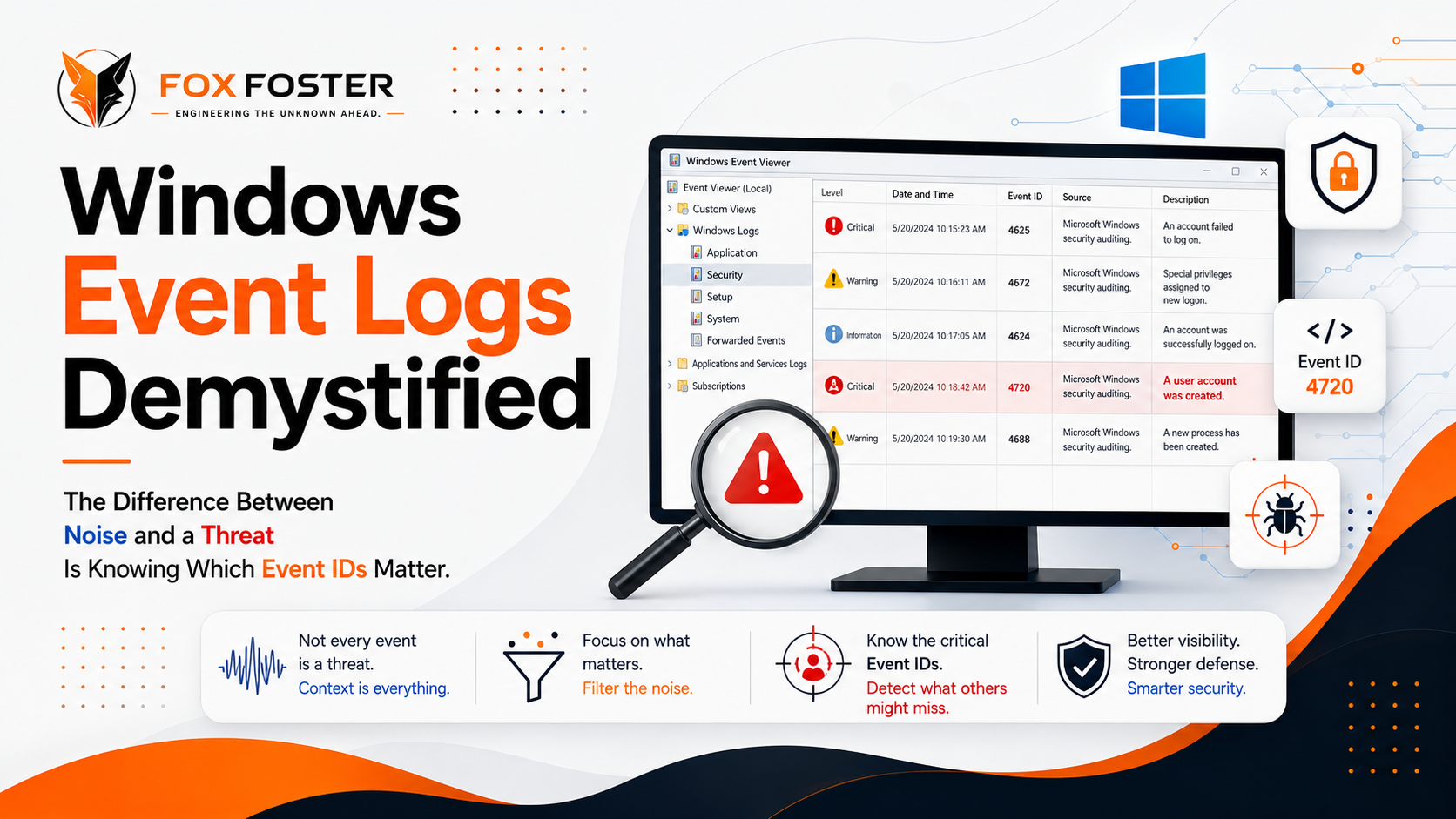
The difference between noise and a threat is knowing which Event IDs matter.
With every log-on, administrative elevation, or installation of a hidden service, Windows keeps track of it. It does not question if this activity was legit — it just logs it. How to interpret this log is one of the easiest ways to transition from looking at a firehose of logs to understanding exactly what happened on a machine.
Here's a tour through fifteen of the most common Event IDs seen during investigation — the meaning and importance for analysts of each one.
Why Event Logs Are the First Place Analysts Look
Windows Event Logs can be considered to be the equivalent of a check-in register, the list of people passing with the swipe of their badges, and the list of maintenance work done in one single list. The guard checking the list later in the night does not necessarily need to watch all the security cameras in the hallways; the list tells him everything he needs to know about what happened.
The same applies to the Windows system; any event — a logon, a change of privileges, the creation of a user or a service — will leave behind an item in the log, with a number and timestamp.
Where Windows Events Come From
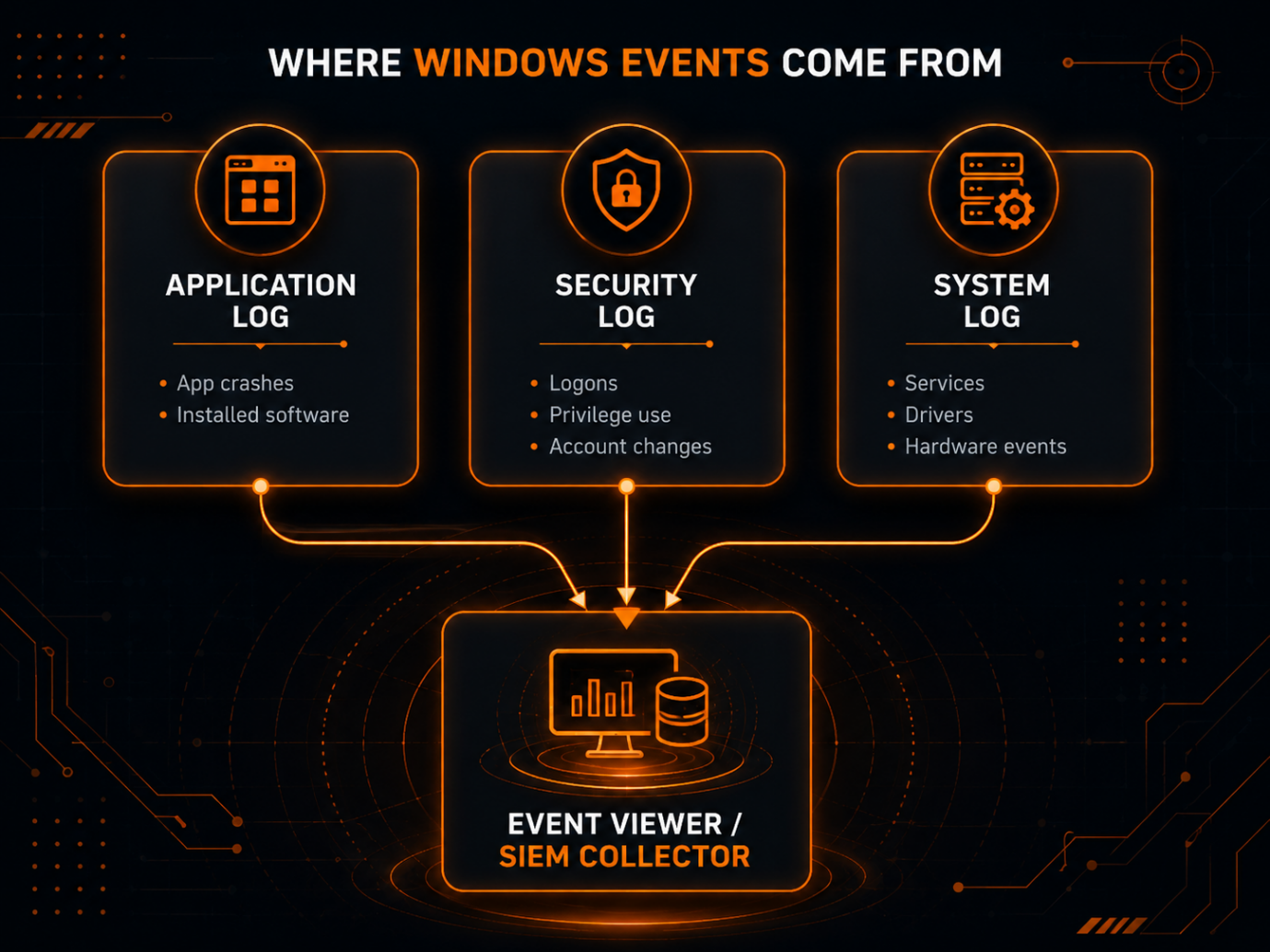
Events in Windows are categorized into various event logs, each one serving a particular purpose. The three that you will always be dealing with are:
- Application — this contains events from applications installed on the system such as crashes, updates, etc.
- Security — where the analyst breathes; logons, logoffs, privilege usage, etc.
- System — events from Windows and the services provided by Windows.
Anatomy of an Event Log Entry
Open up any single event and the same fields are always there. Once you understand their purpose, analyzing a completely unknown log will not be as daunting as it used to be:
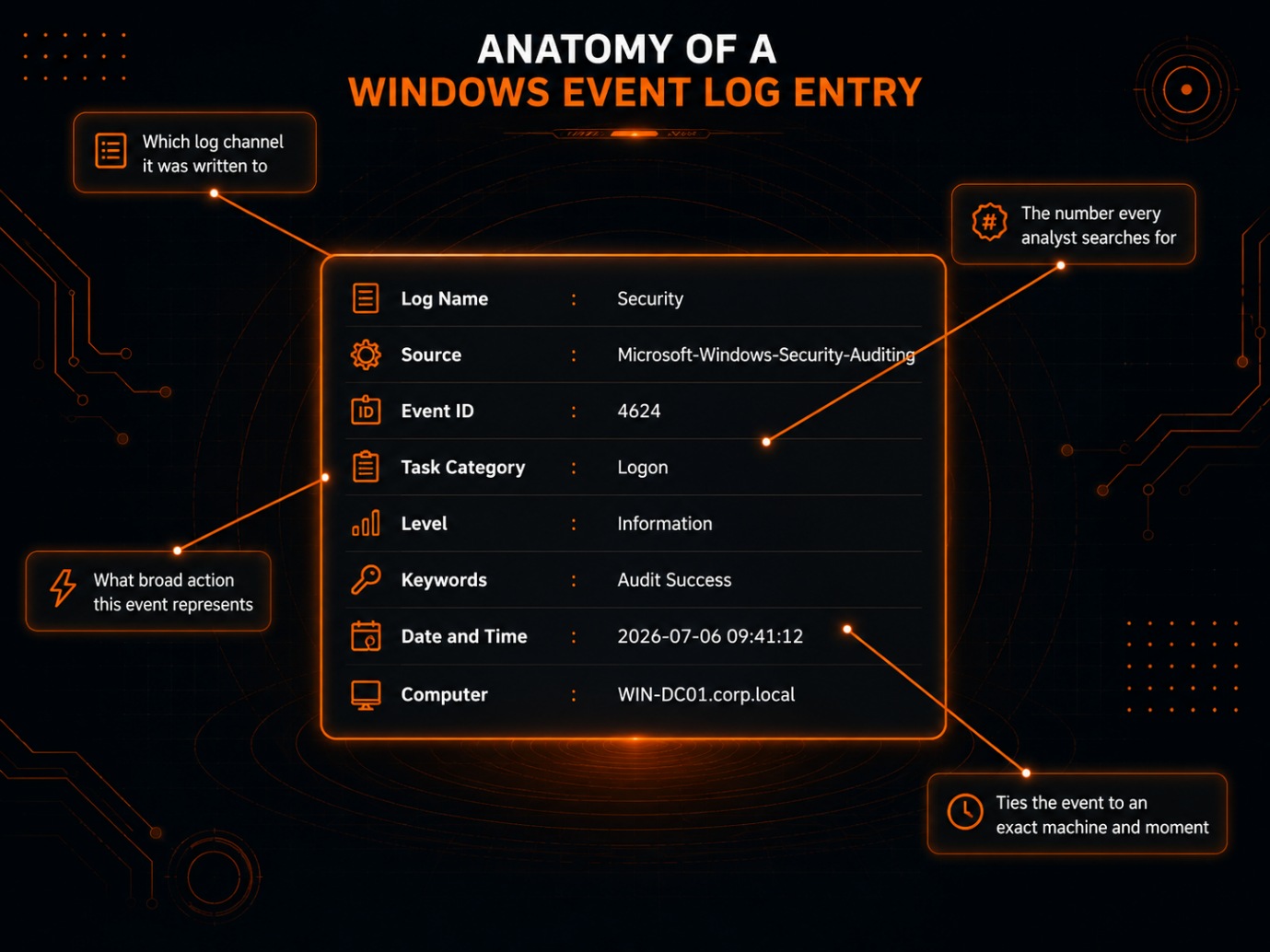
The Event ID is the field which you will use the most when searching through logs, since it is the unique and always constant identifier used by every Windows machine in the world.
The 15 Event IDs Worth Memorizing
| Event ID | What It Means | Why It Matters |
|---|---|---|
| 4624 | Successful logon | Normal, but anomalous volume or time indicates brute-force or credential theft |
| 4625 | Failed logon | Single events are normal; a flood means password spraying or brute-force |
| 4634 | Logoff | Useful for establishing session timelines |
| 4648 | Logon with explicit credentials | Often indicates RunAs usage or lateral movement |
| 4672 | Special privileges assigned to new logon | Administrative access was granted — always worth investigating |
| 4688 | New process created | Critical for detecting malware execution; includes command line |
| 4697 | A service was installed in the system | Potential persistence mechanism; rarely happens on stable systems |
| 4720 | A user account was created | Persistence or backdoor — investigate immediately if not planned |
| 4728 | Member added to security group | Privilege escalation through group membership changes |
| 4732 | Member added to local group | Similar to 4728 but for local groups like Administrators |
| 4768 | Kerberos TGT requested | Normal authentication; anomalies may indicate Golden Ticket attacks |
| 4769 | Kerberos service ticket requested | Normal resource access; unusual targets suggest lateral movement |
| 4776 | NTLM authentication | Legacy protocol; volume spikes or targeting unusual services is suspicious |
| 1102 | The audit log was cleared | Almost always malicious — attackers clear logs to hide their tracks |
| 5156 | Windows Filtering Platform connection | Network connections made or allowed; helps map attacker communication |
These 15 IDs include logon actions, privilege and account modifications, Kerberos authentication, service installation, and the two most obvious anti-forensic indicators. They will help you understand the vast majority of events in a normal Windows forensic analysis.
A Small Scenario: Reading Five Event IDs as One Story
Let's say that there is a junior analyst analyzing a workstation after receiving an alert from a detection rule. None of the messages are individually suspicious, but when taken in context, the true story becomes evident:
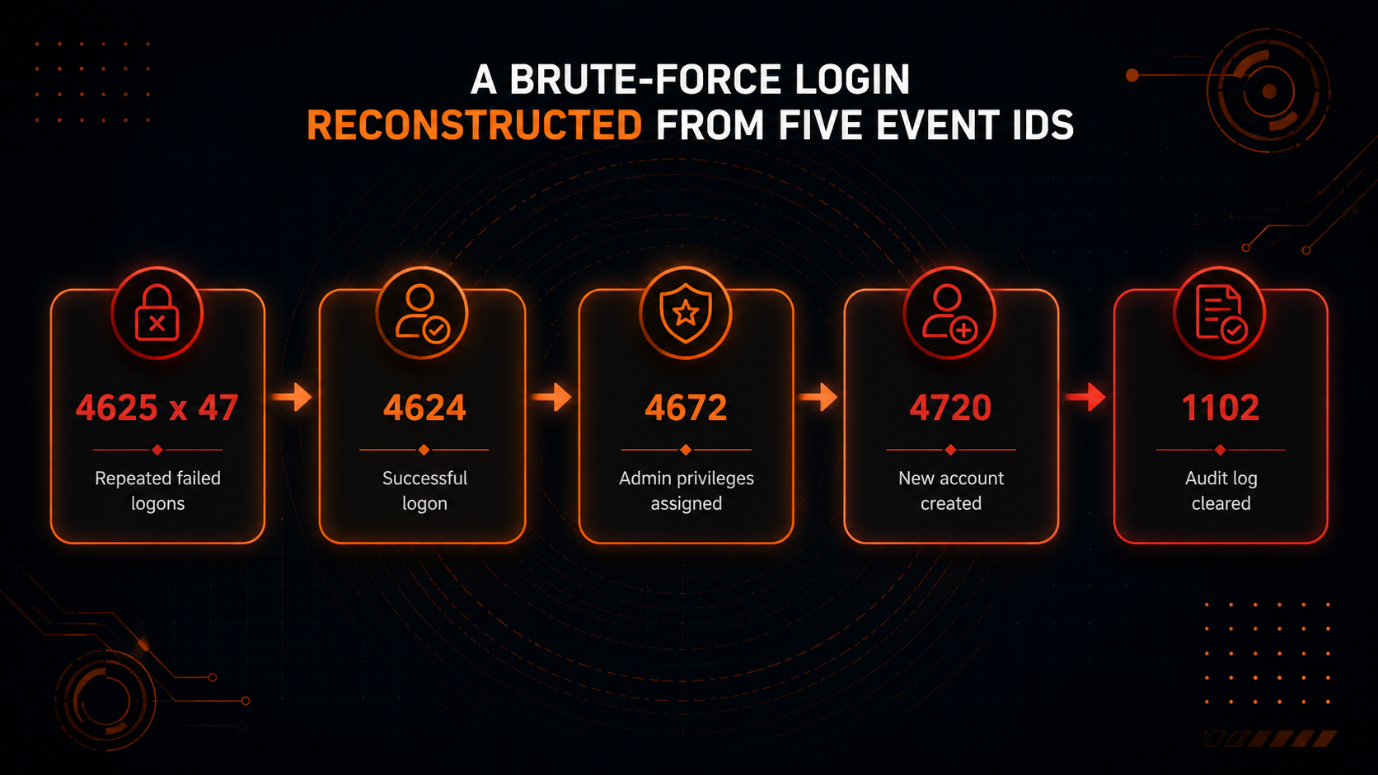
47 messages of 4625 Event ID, targeting the same account in less than two minutes, then a 4624 message indicating a successful login attempt, followed by a 4672 message which grants administrative rights, followed by a 4720 message for creating a new account, followed by a 1102 message which clears the audit log. One message alone can't prove an attack, but all messages together can.
Tools for Reading These Logs
- Event Viewer — the GUI that comes with the system; great for quick analysis of one computer.
- wevtutil — export and querying of logs via command line; useful for scripting.
- Get-WinEvent (PowerShell) — powerful filtering based on Event ID, time, and account name.
- Sysmon — provides more detailed logging related to processes, networks, and file creations in addition to the existing Windows logs.
- SIEM (Splunk, Elastic, Microsoft Sentinel) — centralized logging of multiple computers which reveals patterns such as in the scenario above.
Key Points
- Every Event ID translates to the same meaning across all systems — this is the common language used when analyzing logs.
- The logs are broken down into three types you will use every day — Security, Application, and System. Most valuable investigative data is provided by the Security log.
- One suspicious log entry is an indication. Several logs put together form evidence.
- Two loudest alerts would be 1102 (log cleared) and unusual 4720/4697 (new user or service).
- Native logging is great to start with — then comes Sysmon and SIEM.
Further Reading: Microsoft Security Auditing Events Reference (learn.microsoft.com), Ultimate Windows Security Event ID Encyclopedia (ultimatewindowssecurity.com), MITRE ATT&CK: Valid Accounts & Persistence Techniques (attack.mitre.org), SANS Institute Reading Room.